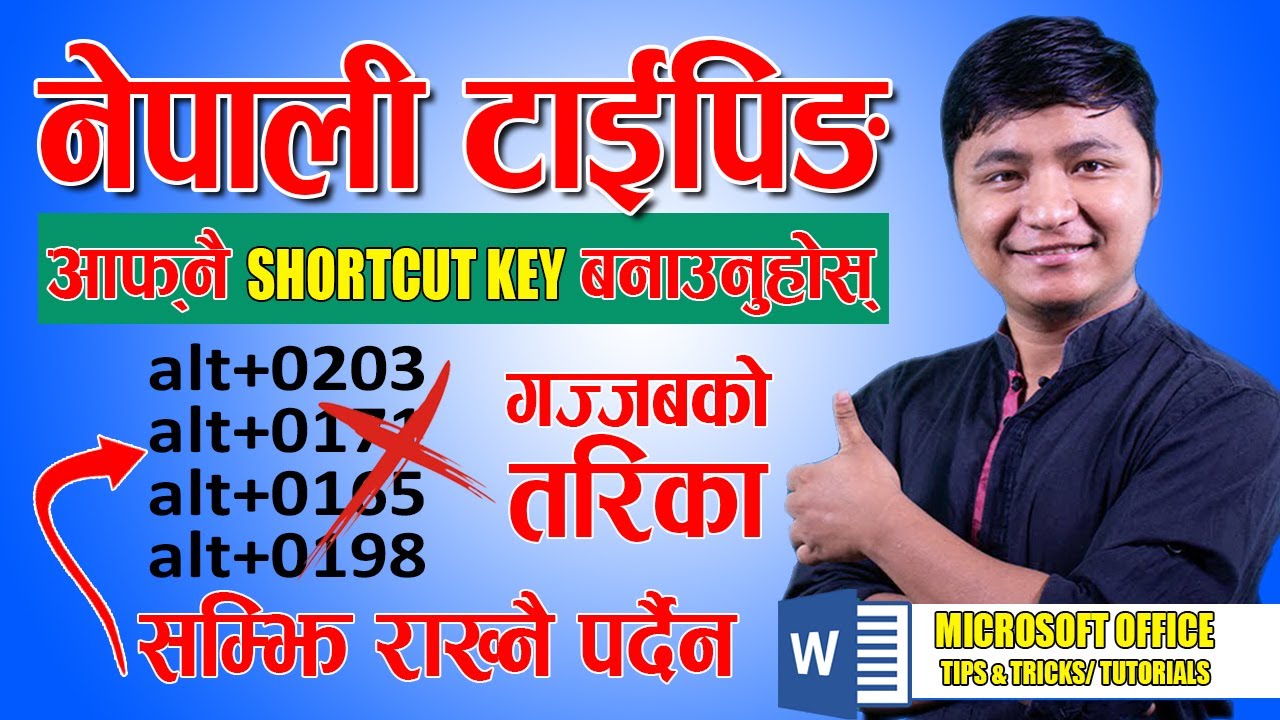
Creating Your Own Preeti Font Shortcut Keys in MS Word
If you frequently work with Nepali typing, especially using the Preeti font, you may have found that switching between fonts in Microsoft Word can become tedious. To make your workflow more efficient, you can create your own Preeti font shortcut keys in MS Word. This allows for quicker access to the Preeti font, so you don’t have to manually change the font each time you want to type in Nepali. Nepali Typing Shortcut keys can simplify this process.
Nepali Typing Shortcut keys.
How to Set Up Preeti Font Shortcut Keys in MS Word
To create shortcut keys for the Preeti font, open MS Word and go to the “File” tab. From there, choose the “Options” menu. Then, access the “Customize Ribbon” section. This area allows you to modify settings related to keyboard shortcuts.
In the “Customize Ribbon” section, click on the “Keyboard Shortcuts: Customize” button. This opens a window where you can customize your keyboard shortcuts. Select the “Font” category from the “Categories” section, and then choose Preeti under the list of fonts. After selecting Preeti, assign a new shortcut key combination, such as “Ctrl + Alt + P,” or another combination that isn’t already in use. These Nepali Typing Shortcut keys make it faster and easier to switch to the Preeti font.
Open MS Word and Access the Customize Keyboard Option
In the “Customize Ribbon” section, a “Keyboard Shortcuts: Customize” button will appear. This option must be selected to open the keyboard shortcut customization window. The font category is chosen under the “Categories” section, and Preeti can be found under “Fonts”. Users are then free to assign a new shortcut key combination, such as “Ctrl + Alt + P” or another that is not already in use. Nepali Typing Shortcut keys.
Nepali Typing Shortcut keys.
Advantages of Using Preeti Font Shortcut Keys
By creating Preeti font shortcut keys in MS Word, you can save a lot of time. There’s no need to manually select the font every time Nepali typing is needed, which makes your document creation process much smoother. Frequently switching between fonts can be frustrating, but with shortcut keys, it becomes seamless, so your typing flow isn’t interrupted.
Customizing Other Fonts to Enhance Typing Speed
In addition to setting up Preeti font shortcut keys, you can create custom shortcuts for other commonly used fonts. This is especially helpful if you work with multiple languages or document styles. For instance, if you frequently switch between Nepali and Roman scripts, you can set shortcuts for both Preeti and Times New Roman fonts, so transitions between the two become faster and more efficient. Nepali Typing Shortcut keys can greatly improve your workflow in this way.
Final Thoughts on Preeti Font Shortcut Keys
In conclusion, creating Preeti font shortcut keys in MS Word is a simple yet effective way to improve productivity when working with Nepali text. By following these steps, you’ll find that your typing process becomes faster and more efficient. Custom shortcuts for Preeti and other fonts not only save time but also enhance the overall user experience when creating documents. Nepali Typing are a great way to streamline your workflow and minimize disruptions.